Settings: what each one changes, and what none of them touch
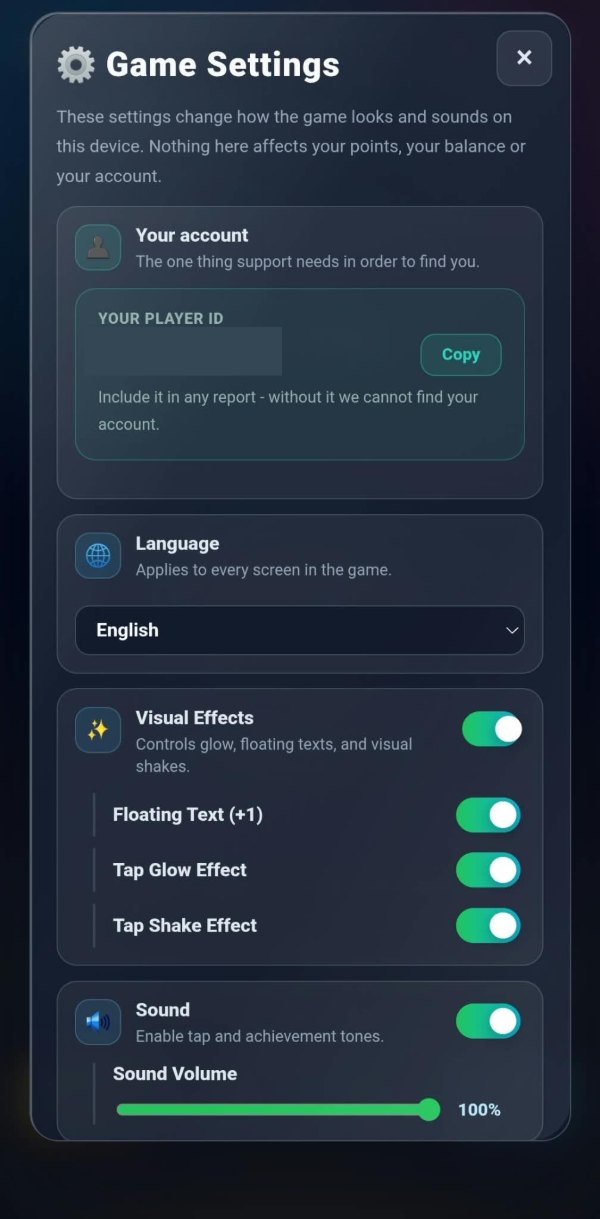
The first line on the settings screen says what the whole screen is: these change how the game looks and sounds on this device, and nothing here affects your points, your balance or your account.
That is worth saying at the top because a settings screen in a game with a wallet in it is a screen people are cautious about. Nothing on it can cost you anything.
Your player id, and why it matters
At the top is a short code beginning TG and a button that copies it. It is the only thing support can find an account by. A message about a missing reward or a withdrawal that did not arrive is a message we cannot act on without it, and the panel says so under the box.
It is not a password and it is not secret in a way that matters — it identifies an account, it does not open one. Nobody who has it can sign in as you, because signing in is Telegram’s job and not ours.
Quote it whenever you write to us, together with the record from the wallet if the question is about a transfer. Where to write is on the support page.
Language, effects, sound and vibration
The language selector applies to every screen in the game, and TAPCO is written in three: Arabic, English and Turkish. It is not a partial translation — every string in the game exists in all three, and the same is true of this website.
Visual effects is one switch with three under it: the little plus-one that floats off a tap, the glow, and the shake. Sound and vibration each have their own switch and their own slider, and both have a preview button so you can hear or feel the setting before playing with it.
The coin theme changes what the coin looks like and nothing else. None of these settings is stored on the server; they belong to the device you are on, so a second device has its own.
Performance, and the three presets
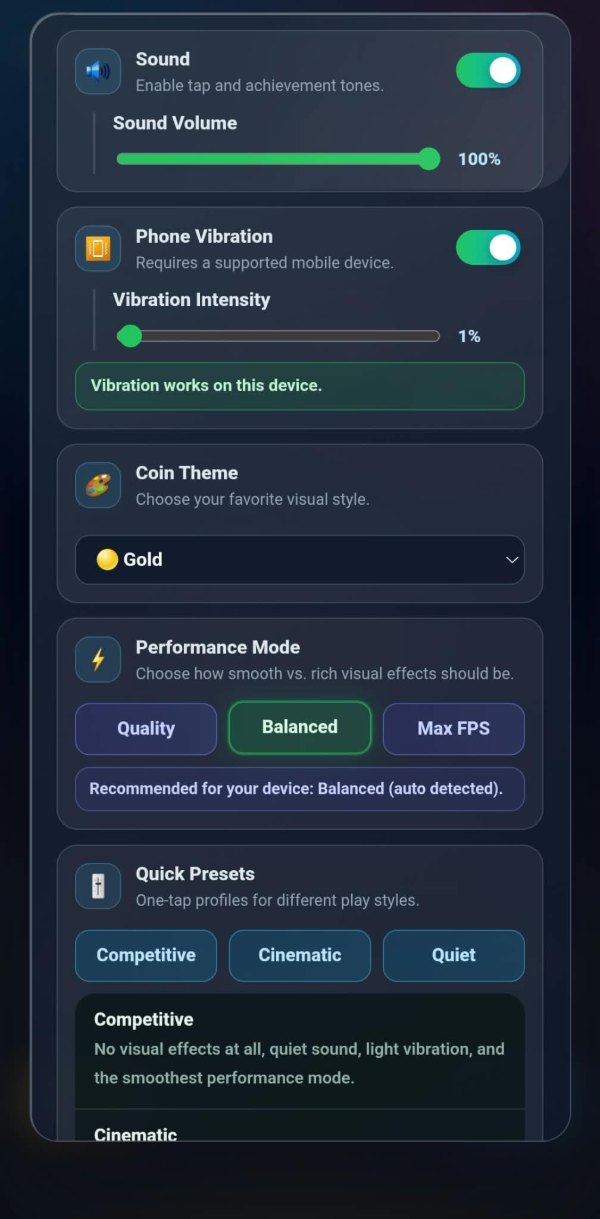
Performance mode has three settings — quality, balanced and maximum frames — and the game detects which suits your device and says so. It is the one setting worth changing if tapping ever feels heavy, because a phone spending its time on the glow is a phone not registering the tap.
The three quick presets set several things at once. Competitive turns every visual effect off, quietens the sound, lightens the vibration and takes the smoothest performance mode. Cinematic does the opposite. Quiet turns sound and vibration off, keeps the tap glow and leaves performance balanced.
Competitive exists for one screen in particular: the daily ranking is decided by taps made by hand, and a frame spent drawing is a frame not counting.
Privacy, and asking for your data
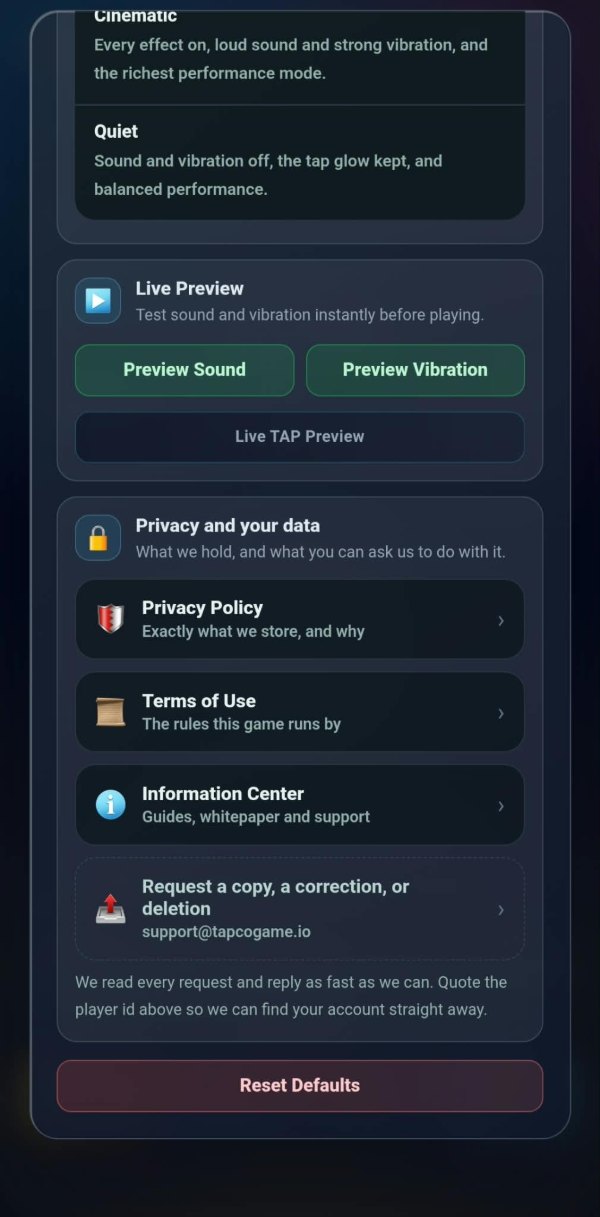
At the foot of the screen are four things: the privacy policy, the terms, the information centre, and a line for asking for a copy of your data, a correction to it, or its deletion.
That last one is an email address and a sentence saying to quote the player id from the top of the same screen. Both halves matter: without the id we cannot find the account, and without the request we do nothing.
A reset defaults button sits at the very bottom. It returns every setting on this screen to what it was and touches nothing else, in keeping with the line at the top.